
Introduction
Connecting your Google TV remote is the first step to unlocking a seamless home entertainment experience. This essential device transforms the way you navigate through content, ensuring that both the smart features and basic functions are at your fingertips. In this guide, we’ll walk you through the detailed process to connect your Google TV remote, tackle any issues that arise, and optimize its features for the best performance.
Understanding Your Google TV Remote
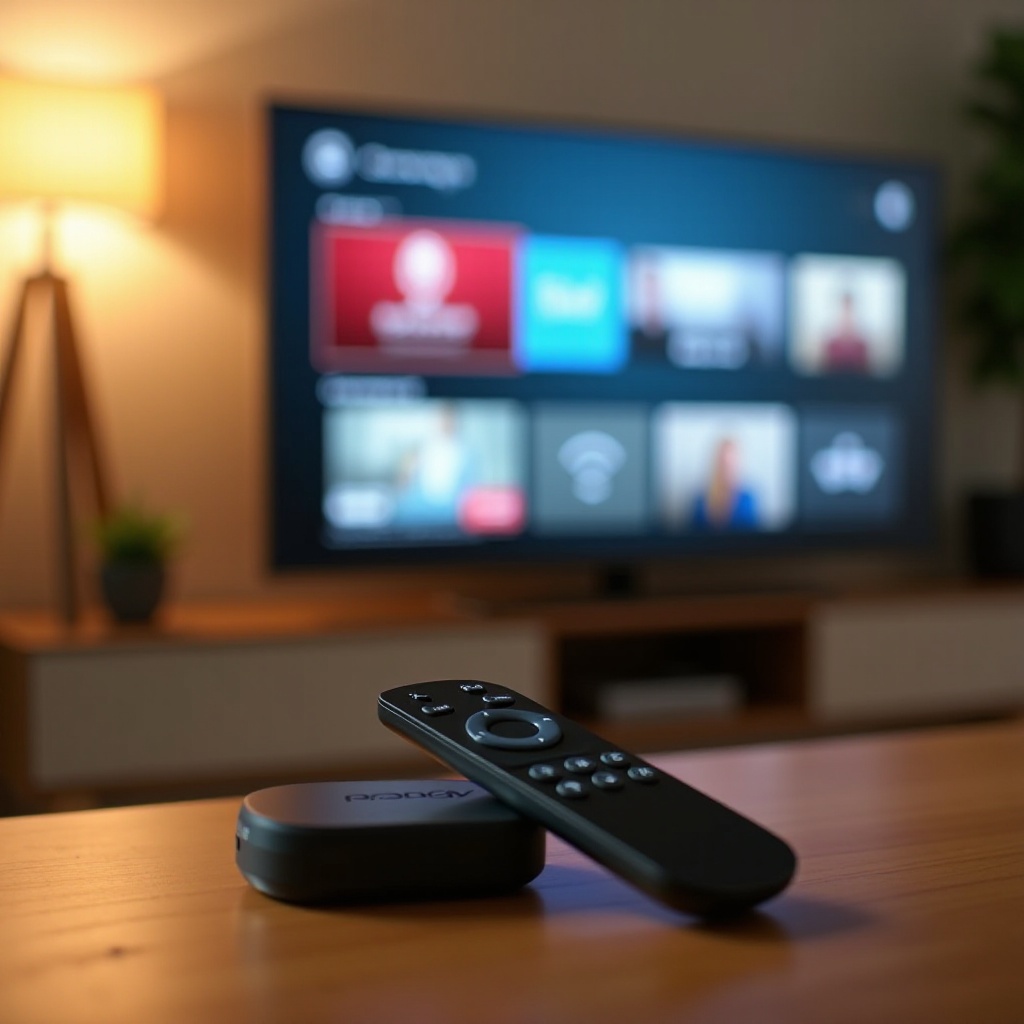
Before diving into the connection process, it’s important to familiarize yourself with your Google TV remote’s features. Its design combines classic navigation with smart capabilities such as voice control, allowing you to enhance interactivity with your television. Understanding how each button functions will aid in a smoother setup and usage.
Preparing for Connection
Ensuring all pre-connection checks are complete will save time and prevent possible frustrations during the setup process.
-
Check Device Compatibility: Confirm that your television and other devices are compatible with the Google TV remote. This can typically be found in the manufacturer’s product specifications or the user manual.
-
Ensure Power Sources are Ready: Make sure your remote’s batteries are fresh and inserted correctly. Verify that your TV is powered on and functioning. Proper power setup is essential for smooth operation.
-
Access the Settings Menu: Use the existing remote or TV buttons to navigate to the settings menu. Familiarity with this menu is crucial since it’s where you’ll initiate the connection process.
Step-by-Step Guide to Connecting Your Google TV Remote
With your preparations complete, follow these steps to connect your remote:
-
Initiate the Pairing Process: Access the ‘Remote & Accessories’ settings and look for the option to pair a new device. This will prompt a pairing mode on your TV screen.
-
Sync with Your Device: Locate the pairing button on your remote, usually on the back or under the battery cover. Press and hold the button until an LED indicator begins blinking, signaling that it’s in pairing mode.
-
Confirm Successful Pairing: Select your remote from the device list displayed on your TV screen to complete the process. A message will confirm successful pairing.
Now, let’s address potential issues you might encounter while connecting your remote.
Troubleshooting Common Issues
Not all connections run smoothly at first. Here’s how to resolve the most common problems:
-
Fixing Unresponsive Buttons: If buttons aren’t responding, try holding the power button on your remote for about 10 seconds to refresh its connection to the TV.
-
Addressing Connection Failures: Check the remote’s range and ensure there are no obstructions blocking its signal. Try moving closer to the TV and initiate the pairing again.
-
Factory Resetting the Remote: For persistent issues, perform a factory reset. Consult your remote’s guide for this process, which typically involves holding two specific buttons simultaneously.
Having resolved potential connectivity issues, let’s explore features that enhance your remote control experience.
Optimizing Your Google TV Remote for Enhanced Use
Once your remote is connected, you can tailor its functionality to suit your needs:
-
Enable Voice Commands: Activate voice commands by pressing the microphone button and following on-screen instructions. This feature allows for hands-free operation and searching.
-
Customize Button Functions: Use the device settings to customize button functions. Assign shortcuts to your favorite apps, making navigation more intuitive.
-
Explore Advanced Settings: Delve into the advanced settings to find options for altering input commands, adjusting navigation styles, and further personalizing your remote’s operation.
Conclusion
By following this comprehensive guide, your Google TV remote should now be fully connected, optimized, and ready to enhance your viewing experience. Enjoy seamless interaction with your TV and explore new entertainment possibilities.
Frequently Asked Questions
How do I reset my Google TV remote if it’s not connecting?
To reset, locate the reset button on your remote, usually under the battery cover, and press it for about 5 seconds.
Can I use the Google TV remote with multiple devices?
Yes, the Google TV remote can be paired individually with multiple devices by following the pairing process for each one.
What should I do if my Google TV remote is still not working after troubleshooting?
If issues persist, contact customer support for further assistance or consider a replacement if the remote is defective.