
Introduction
Enhancing your computer’s graphical performance starts with enabling hardware acceleration on your GPU. This process optimizes your system, allowing it to handle graphics-intensive applications more efficiently, from gaming to video editing. In this guide, we explore how to enable hardware acceleration and make the most of your GPU’s capabilities.
Understanding Hardware Acceleration
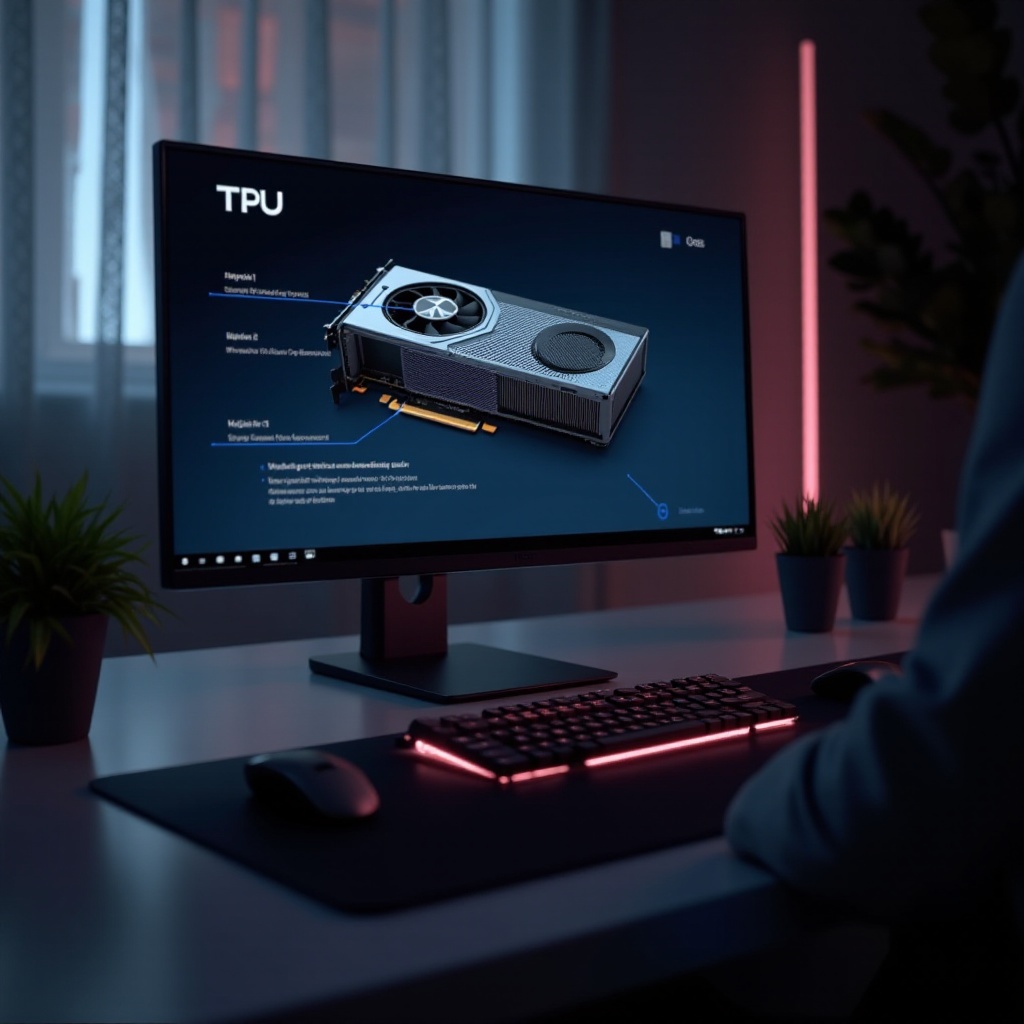
Hardware acceleration offloads specific computing tasks from the CPU to the GPU, facilitating more efficient handling of resource-heavy processes. By understanding this, you can benefit from smoother graphics performance and faster processing speeds. With this understanding, you can move forward to see how your system’s performance can improve.
Checking Your System for Compatibility
Before enabling hardware acceleration, ensure your system can support it. Compatibility checks are vital to ensure functionality without issues.
- Identify Your GPU Model: Use the Device Manager on Windows, About This Mac on macOS, or the Terminal on Linux to find your model. Knowing your GPU specifications is essential.
- Ensure Up-to-Date Drivers: Visit your GPU manufacturer’s website or use automatic update tools to keep drivers current.
Completing these checks prepares us for the next steps, where we focus on enabling hardware acceleration across various operating systems.
Enabling GPU Hardware Acceleration on Windows
For Windows users, activating hardware acceleration can enhance your system’s performance with the following steps:
- Open Settings: Access the ‘Settings’ via the Start menu.
- Navigate to System: Click on ‘System’ and proceed to ‘Display’.
- Advanced Graphics Settings: Scroll to find ‘Graphics settings’ and click on it.
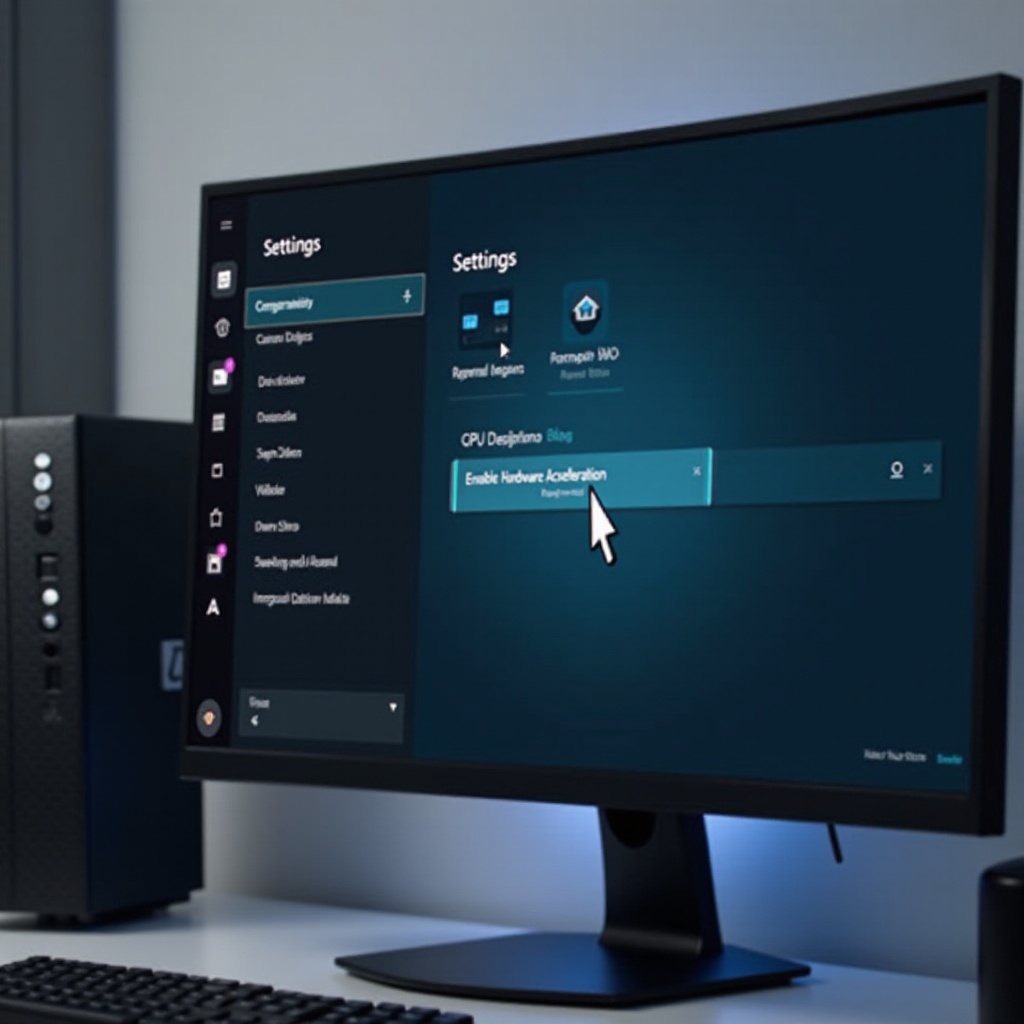
- Turn On Hardware Acceleration: Enable ‘Hardware-accelerated GPU scheduling’.
Following these steps optimizes your Windows system. With this setup, we now switch to macOS configurations.
Enabling GPU Hardware Acceleration on macOS
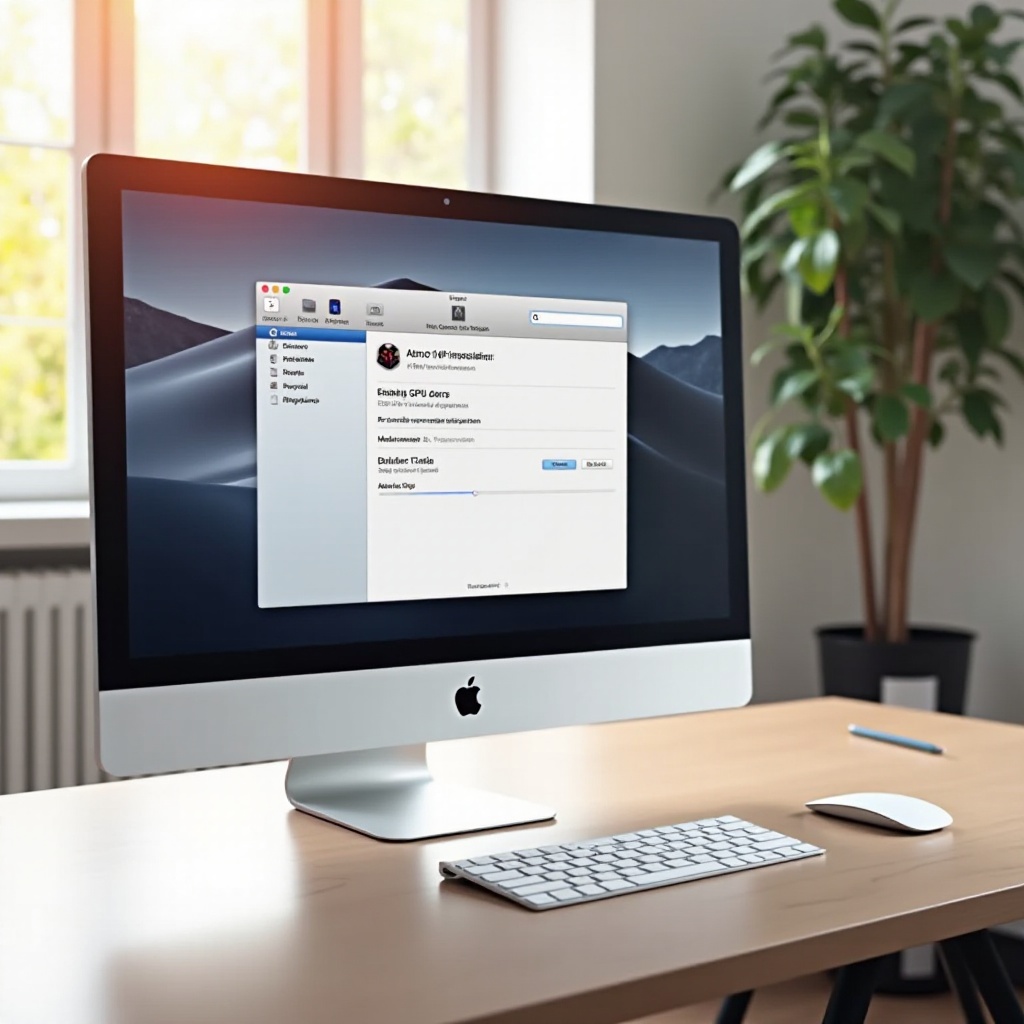
To enhance performance on macOS, adjust settings for hardware acceleration as follows:
- Open System Preferences: Navigate here from the Apple menu.
- Navigate to Energy Saver: Access ‘Battery’ or ‘Energy Saver’ depending on your macOS version.
- Adjust Graphics: Change ‘Automatic graphics switching’ to exploit higher-performance GPUs as needed.
After configuring macOS, your graphical workloads should run more efficiently. Let’s continue with enabling this feature on Linux.
Activating GPU Acceleration on Linux
Linux users may require a technical touch to enable hardware acceleration, but these steps can make it straightforward:
- Open Terminal: Often, this can be accessed with ‘Ctrl + Alt + T’.
- Install Proprietary Drivers: Use commands such as
sudo apt-get install nvidia-driveradjusted to your GPU model. - Configure Settings: Use tools like NVIDIA X Server Settings to enable or tweak hardware acceleration.
Following these instructions will improve your Linux system’s graphical performance, aligning it with other operating systems we’ve discussed.
Application-Specific GPU Acceleration Benefits
Enabling hardware acceleration impacts specific applications significantly:
- Browsers and Video Playback: Enjoy smoother video playbacks and reduced lagging.
- Gaming and Graphics Editing: Experience enhanced frame rates and reduced rendering times, leading to an immersive user experience.
With an understanding of these benefits, you’re better equipped to customize general settings to explode performance for frequently used applications.
Troubleshooting Common Issues
Sometimes, activating hardware acceleration might bring about challenges. Here’s how to troubleshoot effectively:
- Diagnose Problems: Use Task Manager or Activity Monitor to oversee system performance changes.
- Solution Implementation: Temporarily disable acceleration or check driver updates when issues arise. Revert changes using the same menus if beneficial.
After troubleshooting, the improvements you’ve made to your system are backed by consistent performance and less concern about potential complications.
Conclusion
Hardware acceleration is essential for maximizing your computer’s potential by leveraging your GPU’s power. By following platform-specific instructions outlined, you can optimally utilize your system’s capabilities whether on Windows, macOS, or Linux.
Frequently Asked Questions
What happens if I turn off hardware acceleration?
Turning off hardware acceleration shifts the workload back to your CPU, possibly leading to slower graphics performance in resource-intensive applications.
How do I know if my GPU is compatible?
Check compatibility by identifying your GPU model and ensuring your drivers are up-to-date. Most modern GPUs are indeed compatible with hardware acceleration features.
Can hardware acceleration cause issues?
While generally beneficial, hardware acceleration can sometimes lead to compatibility issues. If problems occur, disabling it temporarily can help in diagnosing and resolving these problems.