
Introduction
A smudged touch screen can be both distracting and detrimental to your productivity. Dust, grime, and fingerprints not only impair visibility but can also affect responsiveness. Keeping your touch screen clean is essential for clarity and performance, prolonging the device’s life. Let’s delve into the best techniques for cleaning your laptop’s touch screen efficiently without inflicting harm.
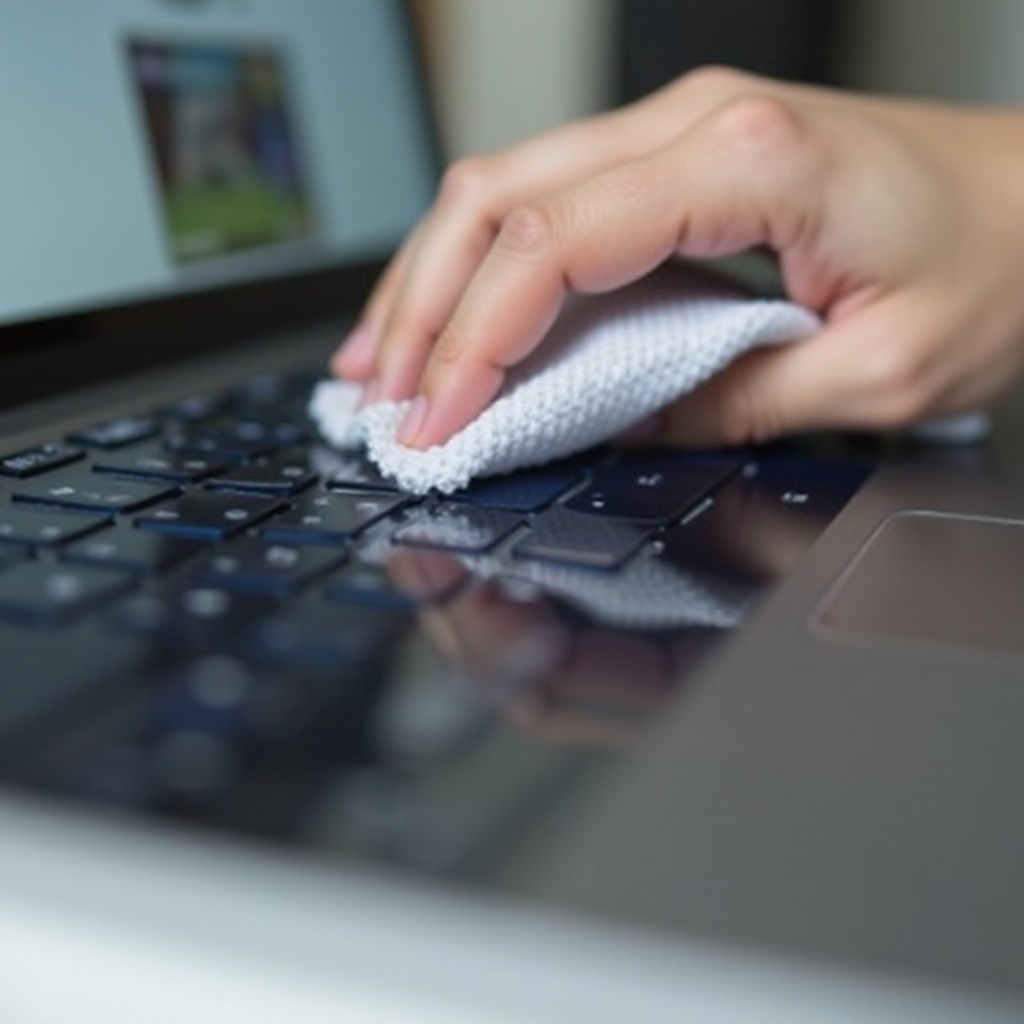
Understanding Your Touch Screen Technology
To clean your laptop’s touch screen effectively, you must first understand the screen type. Various screens demand different cleaning approaches due to their unique materials and construction.
Types of Touch Screens
- Resistive Touch Screens: These screens consist of two flexible layers separated by a gap and rely on pressure for input.
- Capacitive Touch Screens: These screens operate using changes in electrical fields and are common in modern laptops.
- Infrared Touch Screens: Utilizing IR sensors, these screens are highly sensitive but can easily be scratched.
How Screen Type Affects Cleaning
Each touch screen technology interacts differently with cleaning agents. Capacitive screens, for instance, are sensitive to liquids but are relatively straightforward to clean. Recognizing these distinctions assists you in selecting the ideal cleaning method for your laptop.
Gathering the Right Cleaning Supplies
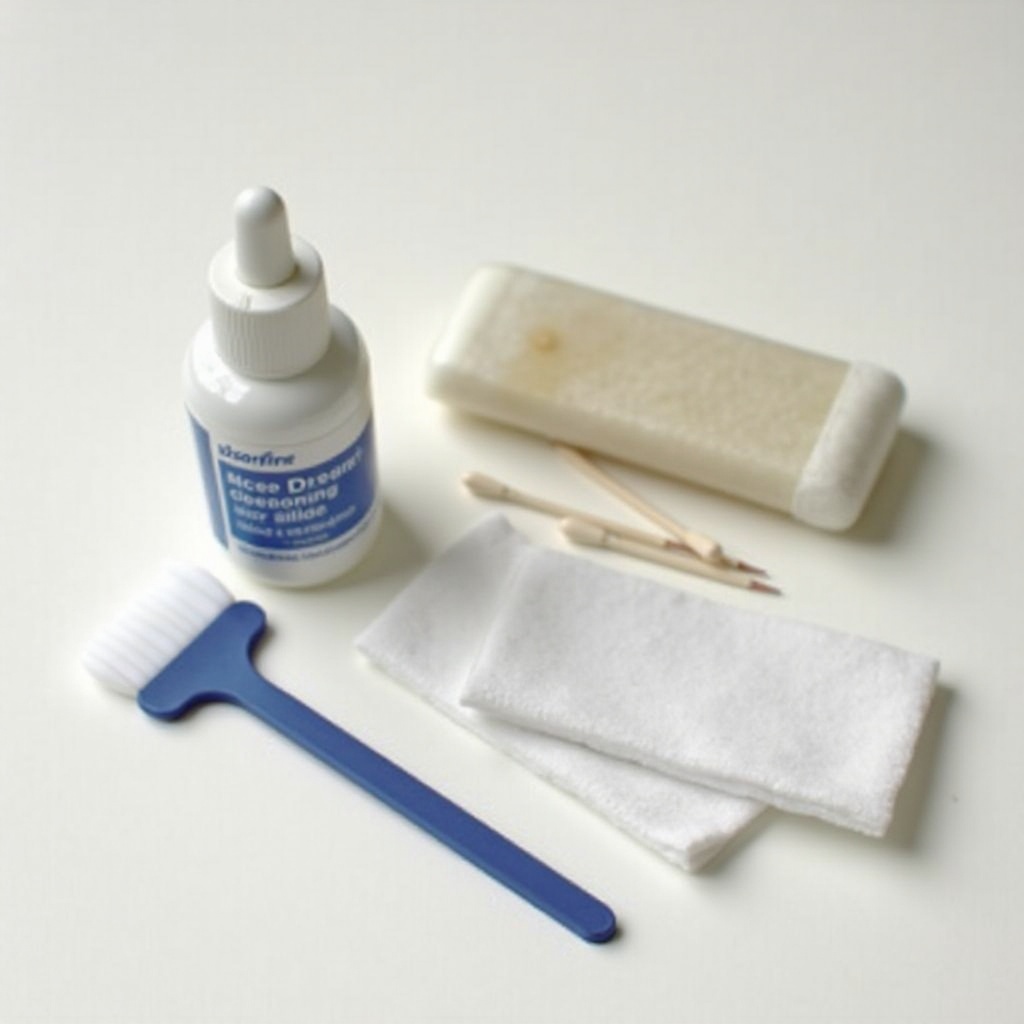
The longevity of your touch screen heavily depends on using the appropriate cleaning products. Inappropriate materials can lead to scratches or reduce touch sensitivity.
Recommended Cleaning Products
- Microfiber Cloths: Perfect for removing fingerprints safely without scratching.
- Specialized Cleaning Solutions: Screen-safe formulas designed for delicate digital surfaces.
What to Avoid
Refrain from using paper towels, rough cloths, or generic cleaning sprays. These can cause damage or leave scratch marks on the screen.
Preparing Your Laptop for Cleaning
Effective cleaning begins with proper preparation, setting the stage for a safe and efficient process.
Powering Down
- Turn off your laptop and unplug it: This step helps prevent accidental inputs or potential electrical issues.
- Disconnect all peripherals: Remove all connected devices like keyboards and USB drives to ensure an uninterrupted cleaning session.
Creating a Safe Workspace
Set up a clean, flat surface free from clutter. Keep away from liquids or food items to prevent unintentional spills, maintaining control over the cleaning environment and minimizing risks.
Step-by-Step Cleaning Process
Now that everything is set, you can proceed with cleaning your touch screen systematically.
Removing Loose Debris
- Use a microfiber cloth: Gently wipe the screen to clear away dust and light dirt.
- Use compressed air: A canister of air can help dislodge particles from crevices and corners effectively.
Applying the Cleaning Solution
- Dampen the microfiber cloth: Lightly spray the cleaning solution onto the cloth rather than directly onto the screen.
- Gently wipe the screen: Use a circular motion to address stubborn spots and smudges.
Wiping and Drying Techniques
- Dry with a clean cloth edge: Use the dry part of the microfiber cloth to absorb any remaining moisture.
- Inspect for Streaks: If necessary, gently buff with another dry microfiber cloth to achieve a spotless, streak-free surface.
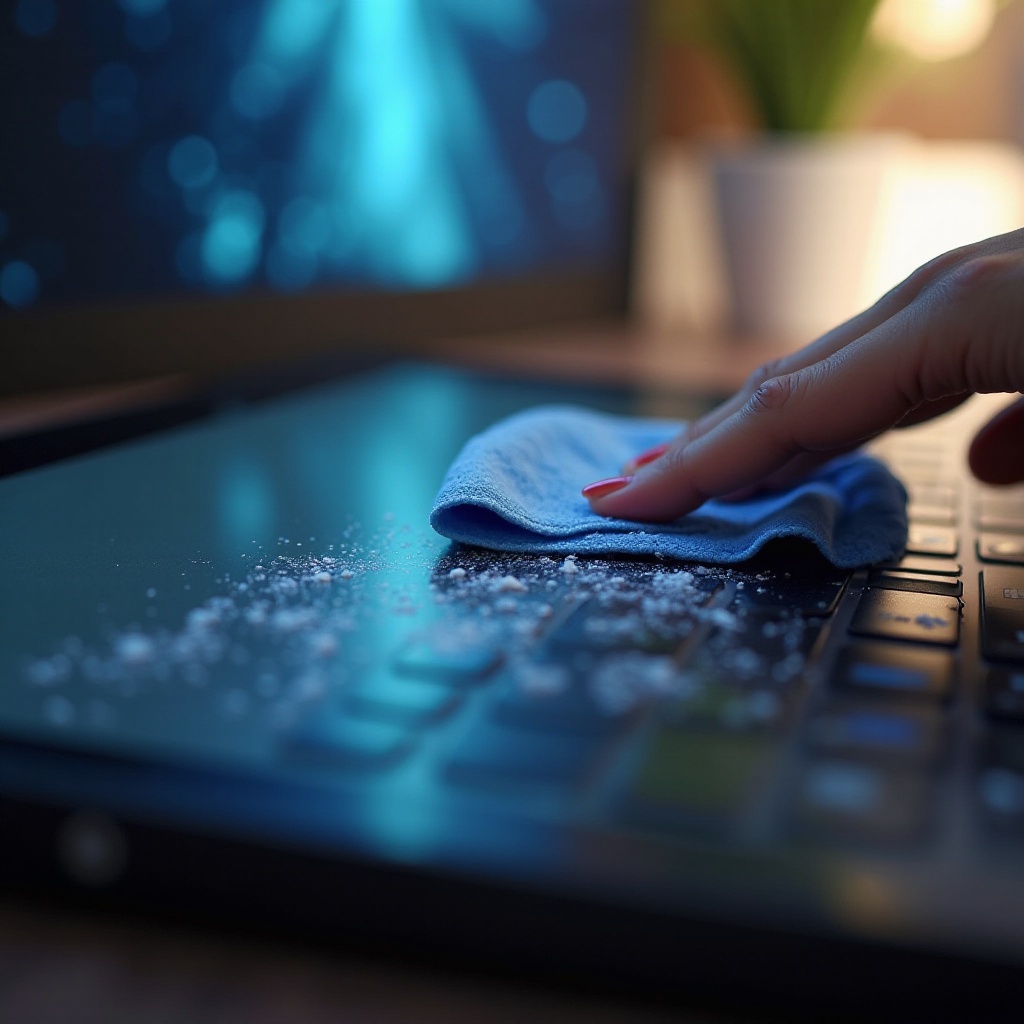
Long-Term Care and Maintenance Tips
Consistent care can dramatically extend your screen’s longevity and functionality.
Regular Cleaning Schedule
Aim to clean your touch screen weekly. Regular maintenance prevents grime accumulation, keeping the display clear and responsive longer.
Protective Accessories
Consider using screen protectors and laptop cases. These accessories shield against scratches and minimize the transfer of oils from your fingers.
Common Mistakes to Avoid When Cleaning
Mistakes during cleaning can inadvertently damage your touch screen.
Products to Avoid
- Glass Cleaners: These contain chemicals that can harm the screen’s protective layer.
- Abrasive Materials: Use only microfiber; rough cloths can scratch the surface.
Incorrect Techniques
- Avoid excessive pressure: Pressing too hard can impair the touch functions of the screen.
- Never soak the cloth: Too much moisture can seep into the device, leading to serious damage.
Conclusion
Cleaning your laptop’s touch screen doesn’t have to be daunting. By understanding your screen type, gathering the right tools, and following a detailed cleaning routine, you can maintain a pristine display and ensure optimal performance. Regular cleaning not only enhances functionality but also protects your investment over time.
Frequently Asked Questions
Can I use vinegar to clean my laptop’s touch screen?
No, vinegar can damage the protective layer and cause screen discoloration. It’s best to use specialized cleaning solutions.
How often should I clean my touch screen laptop?
For optimal performance, clean it at least once a week. This reduces fingerprints and grime buildup, improving visibility and touch responsiveness.
What should I do if the screen becomes unresponsive after cleaning?
Ensure no moisture infiltrated the device. Allow it to dry completely and restart your laptop. If issues persist, seek professional assistance.