
Introduction
Minecraft continues to captivate gamers worldwide, thanks in part to its engaging multiplayer experiences. The Nintendo Switch provides an ideal platform for split screen gaming, allowing friends and family to join together in crafting adventures. Setting up and optimizing this feature can seem daunting initially, but with this guide, you’ll be playing with ease in no time. Jump in and let’s get started!
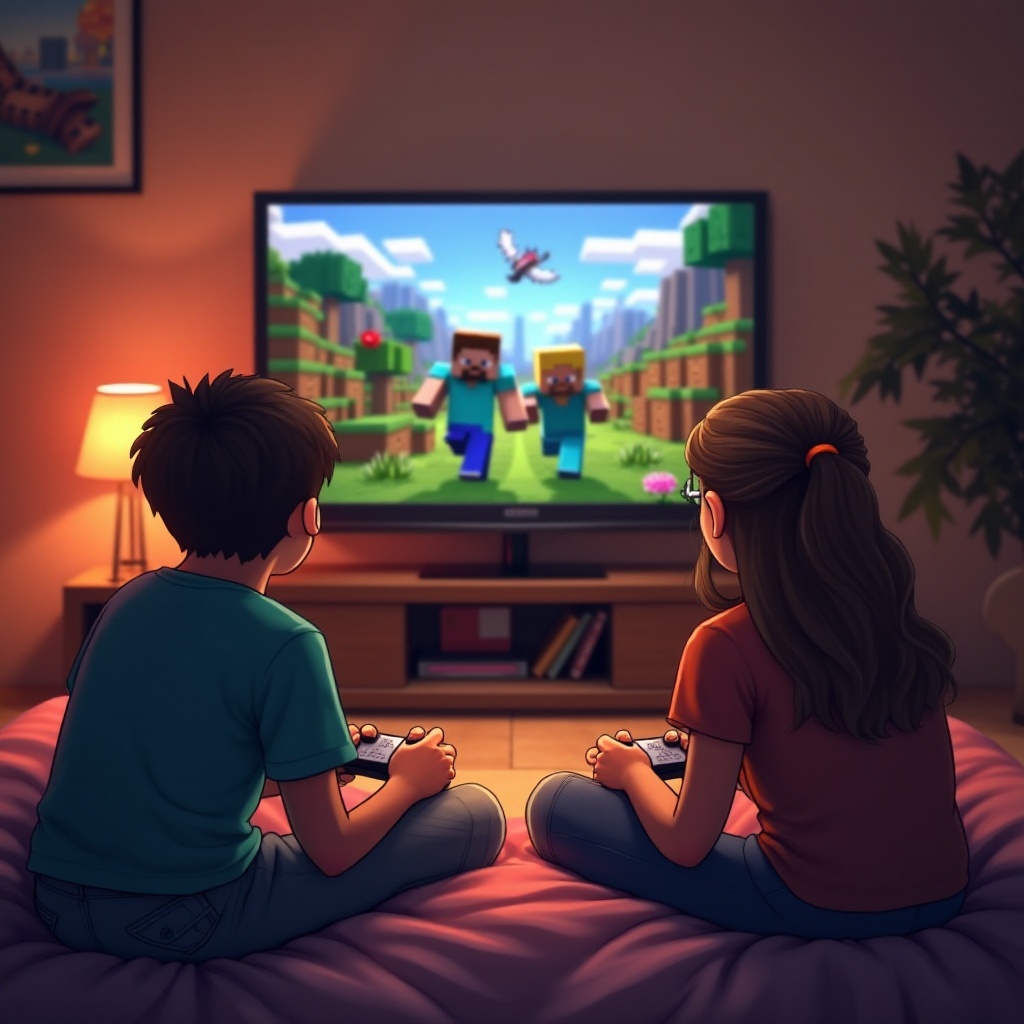
Hardware and Software Setup for Split Screen
To enjoy split screen gameplay on your Nintendo Switch, you need the right setup. Here’s what you’ll need:
- Nintendo Switch Console: Ensure it is connected to your TV and in Docked Mode.
- Controllers: Two or more Joy-Cons or Pro Controllers so multiple players can join.
- Latest Updates: Confirm that both the console software and Minecraft are current.
- Quality HDMI Connection: A stable HDMI connection ensures a clear display.
With these essentials in place, you’re ready to dive into the mechanics of starting your adventure.
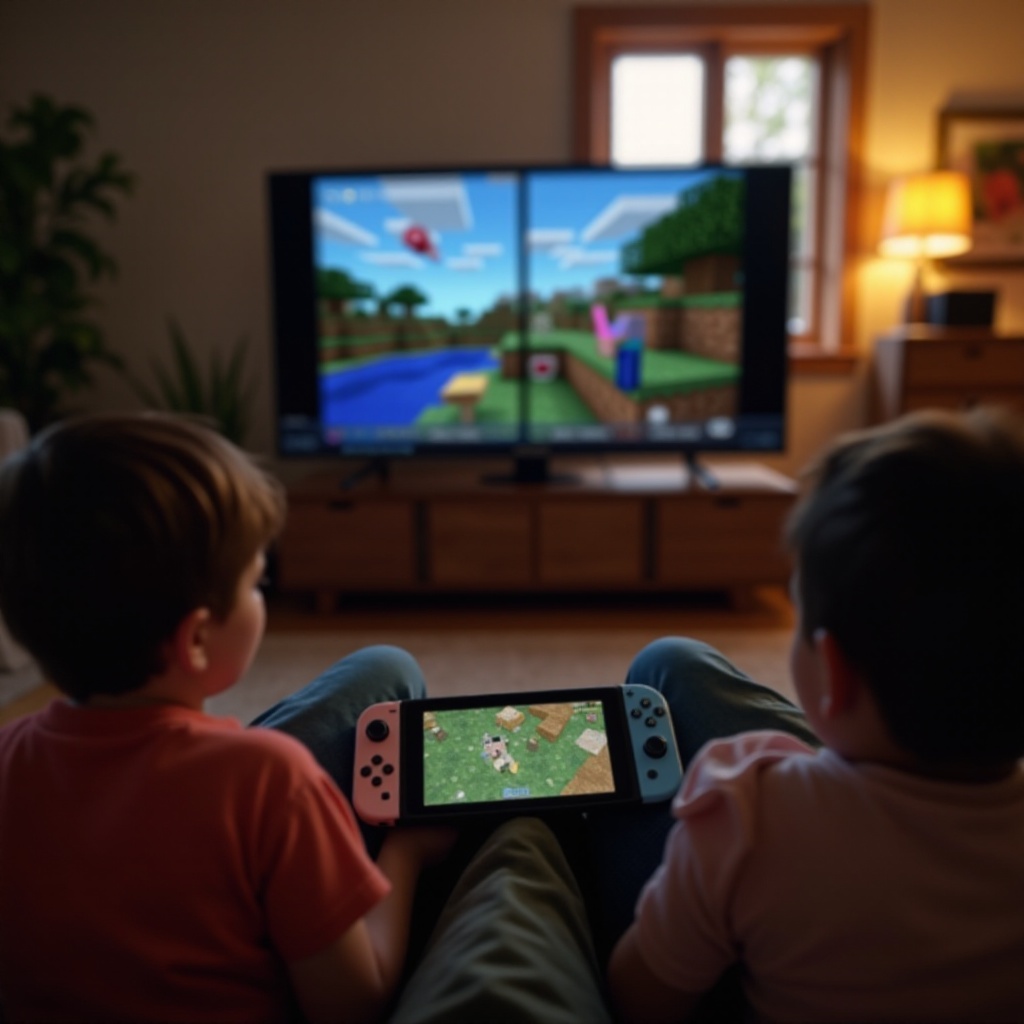
Activating Split Screen Mode: Step-by-Step Guide
Setting up split screen in Minecraft on the Switch is straightforward:
- Launch Minecraft: Access the game from your home screen.
- Select Your World: Either create a new world or enter an existing one.
- Activate Player 2: Use the second Joy-Con or Pro Controller and press the + button to join.
- Configuring Initial Settings: Set up your preferences for optimal play.
With these steps, you’re playing in no time. Next, let’s focus on optimizing the gaming experience to enhance your play.
Optimizing Your Split Screen Experience
Optimizing your experience in split screen mode can make a drastic difference in gameplay quality:
- Adjust Visual Settings: Fine-tune brightness and gamma to ensure good visibility.
- Set Performance Options: Lower render distance may enhance framerate stability.
- Audio Management: Balance the sound for both players by adjusting volume settings or using headphones.
- Display Tweaks: Set your TV’s resolution to deliver the best image possible.
This setup minimizes distractions and lag, ensuring a seamless and enjoyable gaming session. But what if something doesn’t go as planned?
Common Challenges and Their Solutions
Even with a good setup, challenges may arise. Here are some solutions to common issues:
- Display Issues:
- Resolution: Swap HDMI cables or ports; ensure proper cable seating.
- Controller Connectivity:
- Resolution: Re-sync controllers from the system menu or restart the console.
- Game Lag:
- Resolution: Decrease the number of concurrent background processes or app usage.
Addressing these challenges promptly ensures more fun and less frustration during your split screen adventure. Now that it’s working well, let’s think about fun play options!
Creative Ways to Enjoy Minecraft in Split Screen
Utilize split screen mode to enhance your Minecraft experience creatively:
- Cooperative Builds: Jointly work on intricate structures or massive projects.
- Adventure Mode: Team up for quests and battles against foes.
- Creative Mode: Unleash your imagination by experimenting with limitless resources.
These cooperative play styles foster teamwork and keep the game fresh and exciting. Wrapping up, here’s why split screen mode is the ideal choice.
Conclusion
Nintendo Switch offers a fantastic platform for enjoying Minecraft in split screen multiplayer mode. By following this guide, you have the knowledge to set up and optimize your gaming experience, ensuring hours of entertainment with friends and family. Now it’s time to dive into the game and start creating amazing adventures together.
Frequently Asked Questions
How many players can play Minecraft split screen on Nintendo Switch?
Minecraft supports up to four players in split screen mode on the Nintendo Switch, assuming each player uses their own controller.
Why is my split screen not working on my Nintendo Switch?
Ensure your console is in Docked Mode, connected to a TV. Also, check that all controllers are synced and functioning.
Can other Switch games use the split screen feature like Minecraft does?
Yes, many Switch games offer split screen or local multiplayer features, but availability varies by game. Check each game’s settings for options.