
Introduction
Experiencing ‘SOS Only’ on your Verizon phone can be concerning, as it restricts your device to emergency calls only. This status indicates a disconnection from the main network for regular calls and data use. Understanding and resolving this issue is crucial for maintaining communication capabilities on your Verizon device.
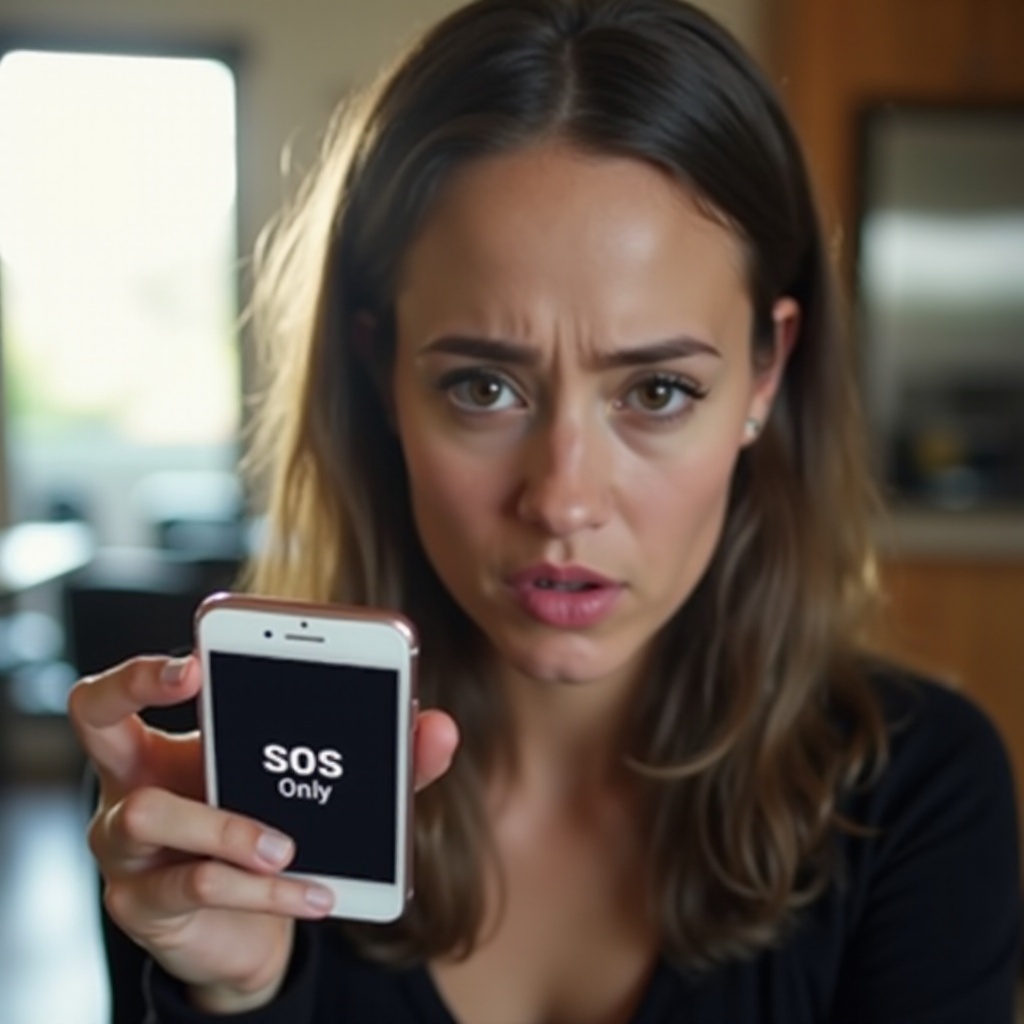
What Does ‘SOS Only’ Mean on Your Verizon Phone?
SOS Only’ signifies that your phone is unable to connect to the Verizon network for regular services. This message can stem from various issues such as network unavailability, SIM card errors, or phone settings misconfigurations. Grasping what ‘SOS Only’ represents allows you to tackle the underlying connectivity problems.
Common Causes for ‘SOS Only’ on Verizon
Understanding why your phone shows ‘SOS Only’ is the first step in fixing it. Several common issues can cause this notification on Verizon phones.
- Network Connectivity Issues
Experiencing network connectivity issues can often lead to ‘SOS Only’ messages. This problem may occur if you’re in a region with weak signal strength or if Verizon’s network is undergoing temporary outages, impacting service availability.
- SIM Card Problems
Issues with the SIM card, such as improper insertion, physical damage, or malfunctioning, can disrupt your phone’s ability to connect to Verizon services, triggering the ‘SOS Only’ message.
- Device Setting Mistakes
Misconfigured settings can also lead to connectivity issues. For instance, if your phone is accidentally set to airplane mode or is configured to the wrong network type, it may show ‘SOS Only’.

Step-by-Step Guide to Fix ‘SOS Only’ on Verizon Phones
Resolving an ‘SOS Only’ issue involves following several steps to identify and fix the root cause. Here’s a detailed guide to getting your Verizon phone connected again.
-
Check Network Settings
-
Access the ‘Settings’ menu and verify ‘Mobile Networks’.
-
Confirm that your phone is set to use compatible network modes (usually LTE or 4G for Verizon).
-
Inspect and Reinsert SIM Card
-
Turn off your device and remove the SIM card carefully.
- Examine the SIM card for any visible damage or dirt. Clean it gently if needed.
-
Reinsert the SIM securely and restart your device.
-
Restart Your Phone
-
A simple reboot can reset your phone’s network settings and restore connectivity.
-
Update Device Software
-
Check ‘Settings’ for software updates.
- Download and install updates to ensure your phone has the latest software, which can improve network performance and fix bugs.
After completing these steps, test your phone to check if connectivity is restored. If the issue persists, you might need to consider more advanced troubleshooting methods.
Advanced Troubleshooting Methods if Issues Persist
If basic steps don’t resolve the issue, it’s time to explore more in-depth solutions that can address persistent network problems.
-
Reset Network Settings
-
Go to ‘Settings’ > ‘General Management’ > ‘Reset’.
-
Select ‘Reset Network Settings’ to clear any incorrect settings that might be blocking connectivity.
-
Restore Factory Settings
-
As a last resort, perform a factory reset. Backup your data, then go to ‘Settings’ > ‘General Management’ > ‘Factory Data Reset’ to clear all custom settings.
These methods can resolve deeper settings-related issues causing ‘SOS Only’. If these advanced steps are unsuccessful, further assistance may be required.
Contacting Verizon Support for Unresolved Issues
When troubleshooting fails to resolve the ‘SOS Only’ problem, reaching out to Verizon support is a practical step. The support team can provide personalized assistance based on your account and device history, helping you diagnose and fix any network-related issues.
Preventive Measures to Avoid ‘SOS Only’ Messages
To prevent this issue from recurring, adopt the following practices:
- Regularly update your phone’s software to fix bugs.
- Ensure your phone is set to the correct network.
- Periodically check and clean your SIM card to avoid connectivity problems.
Conclusion
Handling an ‘SOS Only’ message on your Verizon device can initially be stressful, but understanding what it means and the steps to fix it simplifies the process. By following this guide, you’ll be equipped to restore your phone’s network access and maintain its smooth operation.
Frequently Asked Questions
Why is my phone stuck on ‘SOS Only’?
Your phone might be displaying ‘SOS Only’ due to network reception issues, SIM card problems, or settings misconfigurations. Addressing these factors can often resolve the issue.
Can software updates affect my phone’s network access?
Yes, outdated software can lead to connectivity issues. Keeping your phone’s software updated ensures better compatibility with network protocols and resolves potential bugs.
How do I contact Verizon if resetting doesn’t work?
Contact Verizon’s customer support via their official website or call their support line. Providing details about your issue and the troubleshooting steps you’ve tried can expedite the assistance process.