
Navigating the influx of unwanted calls can be challenging, especially when they disrupt your daily routine. The good news is that your iPhone offers robust tools to manage these interruptions effectively. Learn how to take charge of your call experience by customizing settings, leveraging third-party apps, and keeping up with the latest privacy features iOS has to offer.
Introduction
Handling unknown callers effectively is crucial given the rise in spam and robocalls. Apple’s built-in features allow users to minimize unwanted calls. By understanding and utilizing these settings, you can regain control of your peace and productivity.
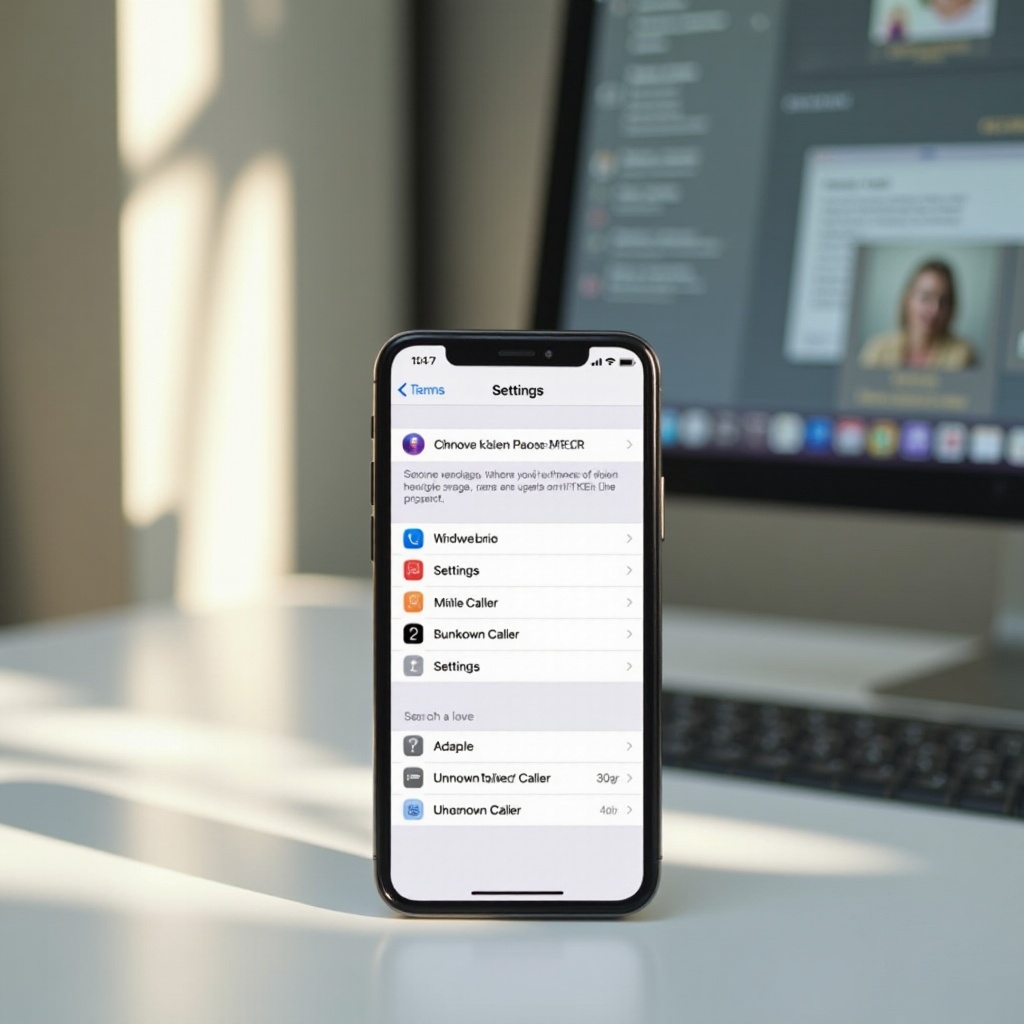
The Importance of Managing Unknown Callers on iPhone
Unknown callers pose a risk to both your time and potential security. They can be anything from telemarketers to more nefarious entities looking to exploit your personal information. By configuring your iPhone’s call settings, you greatly decrease disturbances and enhance your safety.
Securely managing these calls not only protects your privacy but also provides you with a seamless phone experience, allowing you to focus more on calls that truly matter.
How to Silence Unknown Callers on iPhone
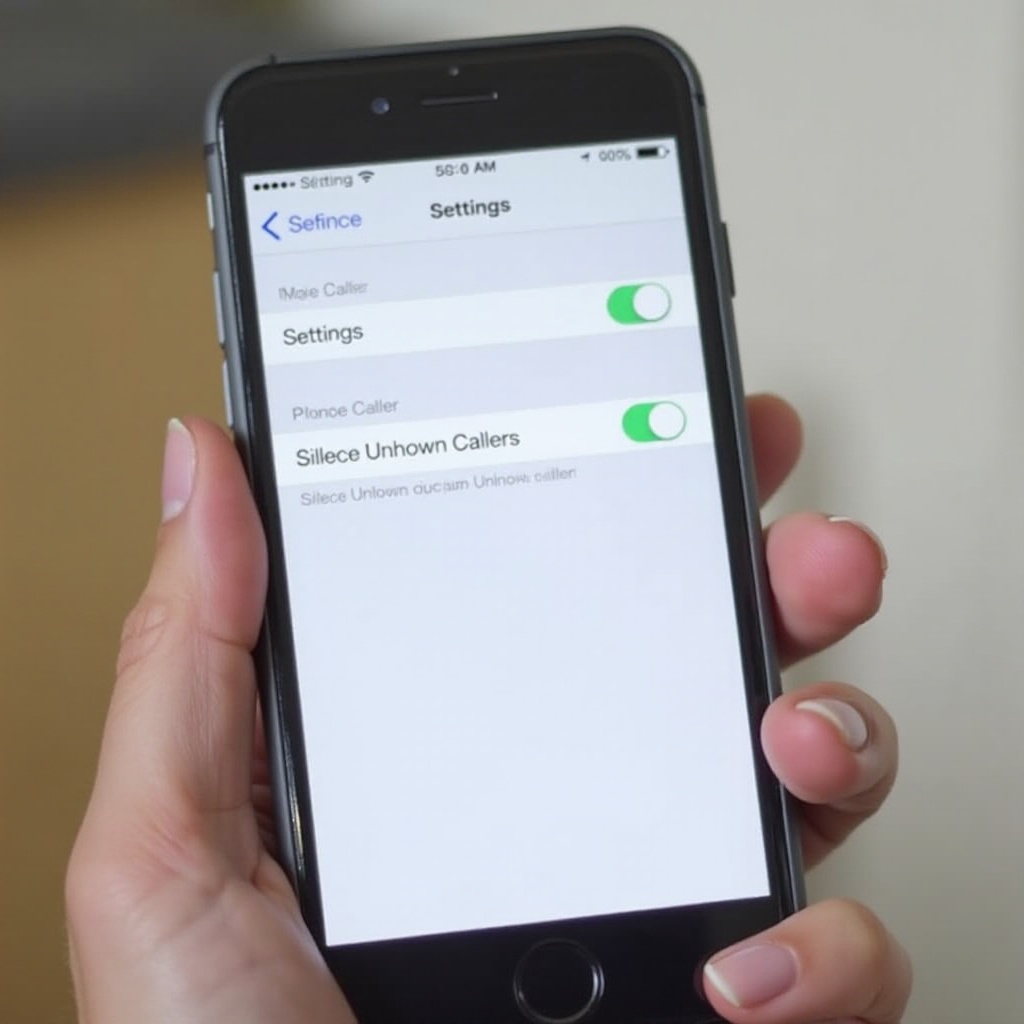
Apple’s ‘Silence Unknown Callers’ feature is a simple yet effective way to manage unwanted disruptions. Follow these steps to enable it:
- Open Settings: Launch the Settings app on your iPhone.
- Choose Phone: Scroll and select the ‘Phone’ option.
- Enable Silence Unknown Callers: Toggle the switch to green.
Activating this feature sends calls from unknown numbers directly to voicemail without ringing, thereby ensuring your workflow remains uninterrupted. However, legitimate calls from unsaved contacts in your address book will also be silenced, so it is important to periodically check your missed calls list to ensure you haven’t missed important communications.
Alternative iPhone Features to Manage Calls
In addition to silencing unknown callers, your iPhone offers additional features to handle calls more effectively and minimize disruptions:
-
Focus Mode: Tailor focus modes to allow calls and notifications only from select contacts. This can be accessed under Settings > Focus, where you can set up different profiles for work, personal time, and more.
-
Do Not Disturb: Found under Settings > Do Not Disturb, this feature silences all calls and alerts, except for your designated favorites. It’s particularly useful for maintaining concentration outside regular working hours.
-
Emergency Bypass: You can allow certain contacts to reach you anytime by enabling the ‘Emergency Bypass’ under their contact settings. This setting ensures critical calls aren’t missed even when other notifications are silenced by Do Not Disturb or Focus modes.
Used together, these features provide a comprehensive approach to managing unwanted callers while keeping essential communications intact.
Enhancing Caller Management with Third-Party Apps
For users seeking advanced control over unknown callers, third-party applications can provide enhanced blocking and screening options:
-
Truecaller: This app not only identifies caller IDs but also provides a robust community-driven database to block spam numbers.
-
RoboKiller: With its AI-driven call-blocking feature, RoboKiller offers predictive blocking of spam calls and humorous prerecorded responses to deal with unwanted callers.
-
Hiya: Known for its extensive caller ID and blocklist features, Hiya helps filter out anonymous calls effectively.
Setting up these apps usually involves downloading them from the App Store, creating an account, and granting necessary permissions. Such apps complement your iPhone’s capabilities, providing a detailed layer of protection against unwanted interactions.
Recent iOS Updates and Privacy Enhancements
Apple’s 2024 iOS updates introduce powerful new features designed to enhance privacy and manage unknown calls:
-
Live Voicemail: This function allows for real-time transcription of voicemails, letting you decide if a call needs immediate response without answering.
-
Call Screening: Utilizes on-device intelligence to filter potential spam calls before they reach you, leveraging the power of machine learning.
Keeping your device updated ensures you have the latest tools to protect your privacy. Regularly check for software updates by navigating to Settings > General > Software Update, keeping your iPhone’s capabilities current.
Practical User Tips for Blocking Spam Calls
Incorporating practical methods with technology can empower you to effectively block and manage unwanted calls:
- Report spam and unwanted calls promptly using built-in features on iPhone to aid in maintaining updated block lists.
- Tweak notification settings to silence alerts during calls, reducing potential distractions.
- Engage with online forums and communities, such as Apple Support or MacRumors, for shared experiences and strategies in managing unknown calls effectively.
These combined efforts will significantly enhance your ability to control your communication flow, leading to a more efficient, less intrusive call experience overall.
Conclusion
Understanding and utilizing iPhone’s settings for unknown callers can revolutionize your call managing experience. With these tools, you can enjoy a balanced life with fewer disruptions, ensuring productivity and personal time are not compromised. Regularly revisit and adjust these settings as needed to align with your changing lifestyle.
Frequently Asked Questions
How do I block an unknown number on my iPhone?
You can block a number from the Phone app by tapping the ‘i’ next to the number and selecting ‘Block this Caller’.
What happens when I silence unknown callers?
Calls from unsaved numbers are sent to voicemail, appearing in missed calls for later review.
Do call-blocking apps compromise my data privacy?
Reputable apps prioritize privacy and use encryption, but you should always review their privacy policies.