
Introduction
Managing numerous passwords across various platforms can be daunting. Fortunately, Apple offers iCloud Keychain, a robust solution for auto-saving passwords on your iPhone. This nifty feature streamlines accessing apps and websites while bolstering security. Let us delve into the setup process and management of iCloud Keychain to enhance your digital life.
Understanding iCloud Keychain
iCloud Keychain is Apple’s native password manager, designed to store and synchronize passwords across your Apple devices securely. This tool not only saves login credentials but also auto-fills them across compatible apps and websites. By understanding how iCloud Keychain functions, you lay the groundwork for an enhanced and secure password management system without needing external apps.
Setting Up Password Auto-Save on iPhone
The journey to seamless password management begins with enabling iCloud Keychain. Here’s how:
- Enabling iCloud Keychain:
- Open the ‘Settings’ app on your iPhone.
- Tap your name at the top to access ‘iCloud’, then select ‘Keychain’.
-
Switch on iCloud Keychain.
-
Configuring AutoFill for Apps and Websites:
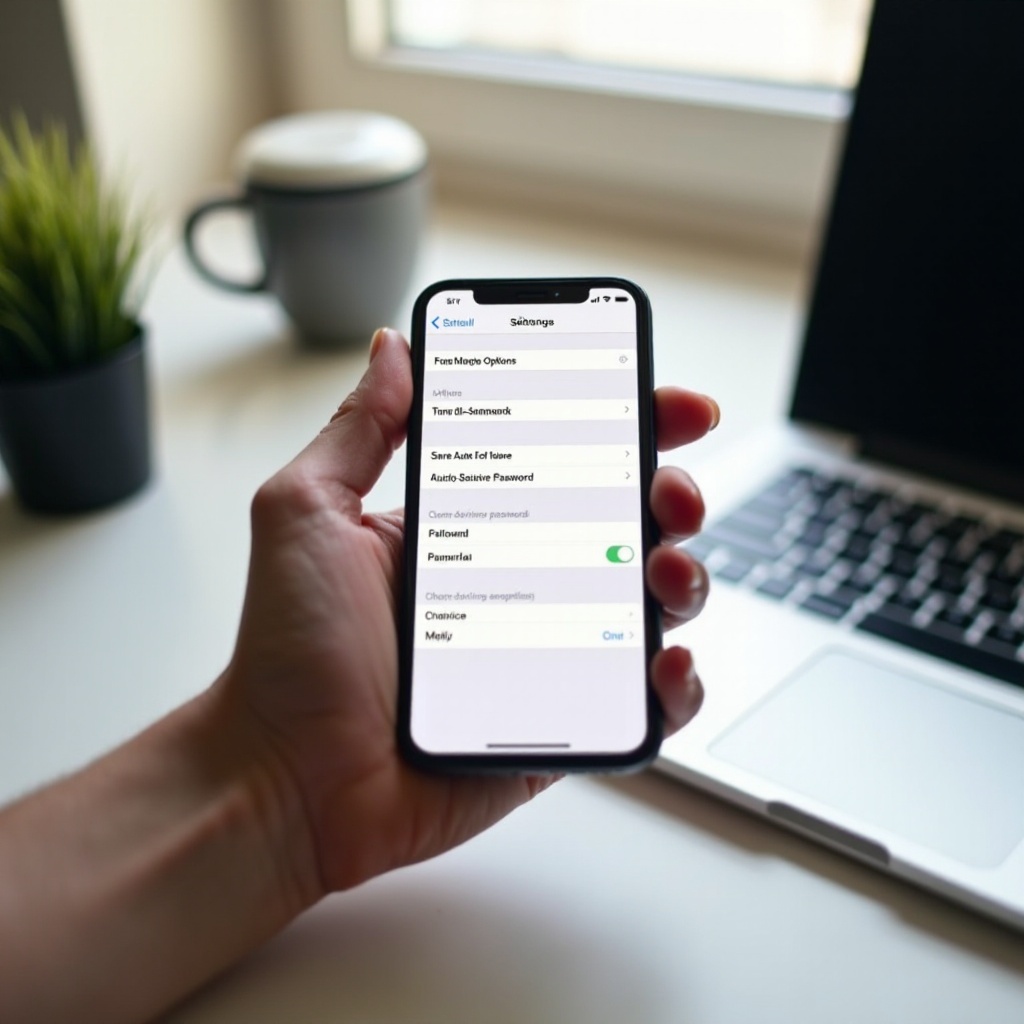
- Return to ‘Settings’ and navigate to ‘Passwords & Accounts’.
- Tap on ‘AutoFill Passwords’ and activate the option.
- Ensure ‘iCloud Keychain’ is selected as your preferred password manager.
These steps allow your iPhone to save and automatically fill in passwords, enhancing both convenience and security by allowing the creation and use of unique passwords.
Managing and Editing Saved Passwords
With iCloud Keychain set up, managing your stored passwords becomes important. Here’s how to navigate this process:
- Viewing Saved Passwords:
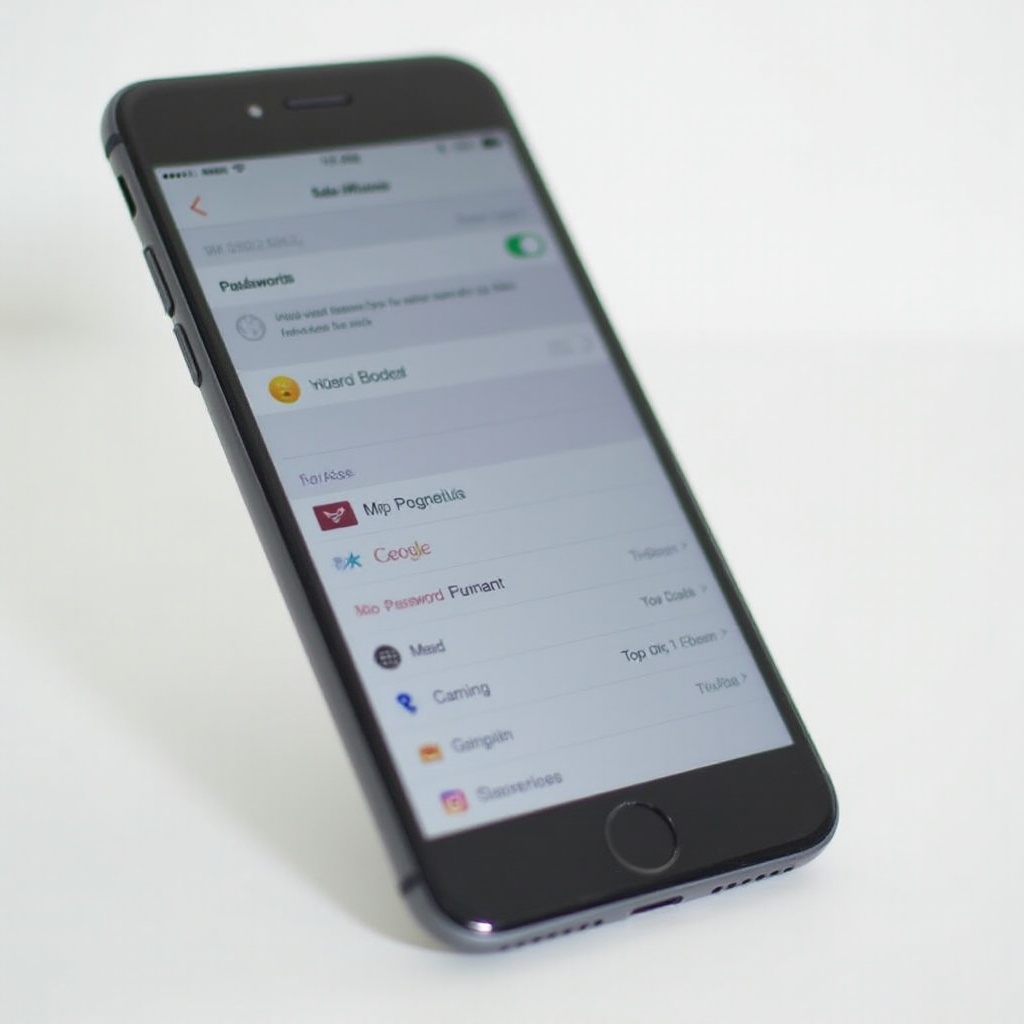
- Go to ‘Settings > Passwords’.
- Authenticate with Face ID, Touch ID, or your device passcode.
-
Browse the list to find the account details you need.
-
Editing or Deleting an Entry:
- Select the relevant password entry.
- Tap ‘Edit’ to update details or ‘Delete Password’ to remove it entirely.
Consistent management of your passwords ensures accuracy and enhances your security posture by promptly updating outdated credentials.
Troubleshooting Common Issues
Sometimes, auto-saving might not work smoothly. Address these challenges efficiently with these solutions:
- Auto-Save Not Working:
- Ensure your iPhone’s operating system is up-to-date.
-
Verify that iCloud Keychain is properly enabled in your settings.
-
Sync Issues Between Devices:
- Confirm that all devices are using the same Apple ID.
- Check your internet connection to facilitate seamless syncing.
Being aware of these troubleshooting tips ensures that you can maintain a smooth experience across all your Apple devices.
Best Practices for Password Security
While auto-saving passwords alleviates the burden of remembering multiple logins, maintaining security is crucial:
- Creating Strong, Unique Passwords:
- Utilize the iCloud Keychain’s password suggestion feature to generate complex passwords.
-
Avoid recycling passwords across different sites to mitigate security risks.
-
Utilizing Two-Factor Authentication:
- Enable two-factor authentication for additional security. This adds another verification layer, making your accounts more secure.
Incorporating these security practices complements the functionality of iCloud Keychain and offers a fortified digital security umbrella.
Enhancing Security with Third-Party Tools
For those who require additional features beyond iCloud Keychain, trusted third-party password managers can offer additional benefits. These tools often include enhanced organization, secure password sharing, and robust storage functions. Ensure the chosen manager is compatible with iCloud Keychain to maintain a cohesive security system.
Conclusion
Utilizing iCloud Keychain to auto-save passwords transforms how you interact with your devices, offering convenience and enhanced security. By properly setting up and managing this feature, along with adhering to cybersecurity best practices, you can keep your personal information safe and secure. Begin your journey with Apple’s password manager today to enjoy the seamless and secure digital experience it provides.
Frequently Asked Questions
How safe is the iCloud Keychain feature?
iCloud Keychain uses end-to-end encryption, ensuring that only you can access your passwords, providing a reliable security layer.
Can I use Auto-Fill with third-party apps on my iPhone?
Yes, iCloud Keychain supports auto-filling passwords in compatible third-party apps, making login procedures swift and secure.
What should I do if I forget a saved password?
Access your saved passwords in the ‘Settings > Passwords’ section on your iPhone to view and retrieve any forgotten passwords effortlessly.